
Open TikTok or Reels and you will notice the same thing in almost every video that keeps you watching: big, animated, word-by-word captions. Making them by hand takes forever. That is the gap Submagic tries to fill.
In this Submagic review, we go through what it does, what it really costs once you read the fine print, and who gets the most out of it. We also point out where it falls short.
Quick verdict: if you post short videos every week and want polished captions without learning an editor, Submagic is a strong pick. If you mainly need to cut long videos into clips, or you are on a tight budget, look at the alternatives below first.
How we put this review together: it is based on Submagic’s published pricing and help pages, plus independent user reviews on sites like G2 and Trustpilot. Prices change often, so always confirm on the official pricing page before you subscribe. This article contains affiliate links, which means we may earn a commission at no extra cost to you. It never changes our verdict.
What Is Submagic, in Plain English?
Submagic is an AI editor built for short-form video. You upload a video (or paste a link), and it transcribes the speech, adds animated captions in the style of your choice, and can layer on extras like zooms, B-roll, sound effects and music. You then tweak anything you do not like and export a vertical video for TikTok, Reels or Shorts.
It is not a full editor like CapCut or Descript. Think of it as the finishing step: you bring a video that is already filmed, and Submagic makes it look “native” to short-form platforms.

The Features That Actually Matter
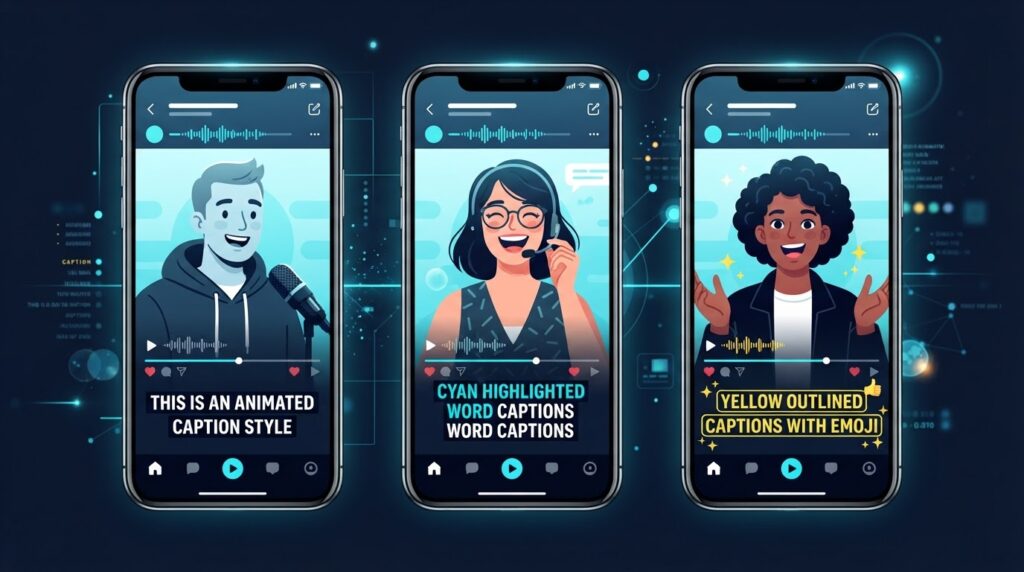
Animated captions. This is the main reason people use it. Users on G2 repeatedly praise the one-click captions and the many style options. Submagic says it supports transcription in roughly 50 languages and claims very high accuracy. As with any AI captions, check names and brand terms, which reviewers say are the most common mistakes.
Magic B-roll and zooms. It can add stock footage and punch-in zooms automatically. Reviewers find the zooms work well, while the B-roll does not always match what is being said, so plan to review and remove clips that miss.
Magic Clips. This turns a long video into short clips, similar to Opus Clip. It is sold as an add-on with its own credit cost, so it is not part of the basic price. More on that below.
Extras. Silence removal, audio cleanup, brand styles, and translation of captions into many languages are available on higher plans.
Pros and Cons
| What we like | What to watch out for |
|---|---|
| Very easy: great captions in a few clicks | Free plan exports include the Submagic logo |
| Lots of caption styles that look native on TikTok and Reels | Video length and monthly video counts are capped on each plan |
| Auto zooms and B-roll save editing time | Auto B-roll is hit and miss and needs checking |
| Strong user ratings on G2 | Magic Clips costs extra, and plans are billed per member |
Submagic Pricing: What You Really Pay
Submagic charges by how many videos you export and how long they are, not by a flat “unlimited” fee. Here is the picture as of November 2026, based on published pricing:
| Plan | Price | What you get |
|---|---|---|
| Free | $0 | Limited trial, exports carry the Submagic logo |
| Starter | About $19/month ($12/month billed yearly) | Around 15 videos a month, up to 2 minutes each |
| Pro | About $39/month | More videos per month, longer videos (up to about 5 minutes) |
| Business | Custom or higher tier | Longer videos, 4K export, team features |
Three things to know before you pay:
- Magic Clips costs extra. It uses more credits per video, and some comparison sites report it as a paid add-on. If clipping long videos is your main goal, add that to your budget.
- It is priced per member. A small team pays for every seat.
- Watch your billing. Some Trustpilot reviewers complain about renewals and cancellations. Set a reminder and read the cancellation terms before you start.
Annual billing can cut the price by up to about 41%, so if you already know you will keep using it, yearly is cheaper.
Who Should (and Shouldn’t) Use Submagic
It is a great fit if you:
- Post talking-head or tutorial videos on TikTok, Reels or Shorts every week
- Want eye-catching captions without learning a full editor
- Manage content for clients and want a consistent branded look
Skip it if you: mostly need to cut long podcasts into clips on a small budget, want to edit every cut by hand, or have not yet tried the free tools. In that case, start with the best free AI video editors for TikTok creators.
Submagic Alternatives Worth a Look
- Opus Clip or Klap if your priority is cutting long videos into clips. See our Klap review and our list of Opus Clip alternatives.
- CapCut if you want a free editor with auto captions. Compare it in CapCut vs Opus Clip.
- Other caption tools are covered in our guide to AI tools for TikTok captions and subtitles.
How to Try It Without Wasting Money
Take one real video you have already posted and run it through the free plan. Then check three things: how many caption mistakes you had to fix, whether the style looks like your brand, and how long the whole process took compared with your usual editing. If it saves you real time, the Starter plan is enough to begin with.
Submagic Review: Common Questions
Is Submagic free?
There is a free plan to test it, but exports carry the Submagic logo. For clean videos you need a paid plan.
How accurate are the captions?
Generally good for clear speech, but always proofread. Names, brands and technical terms are where mistakes usually appear.
Can Submagic cut long videos into clips?
Yes, with its Magic Clips feature. It uses more credits than normal captioning, so check the cost against dedicated clipping tools.
Is Submagic better than CapCut?
They solve different problems. CapCut is a full editor you control by hand and has a free plan. Submagic is faster for captions and quick polish, but it costs money and does less on its own.
Our Verdict
Submagic does one thing very well: it makes short videos look professional in minutes. If captions are the slow part of your workflow, it can pay for itself quickly. If you need heavy clipping, full editing control or the lowest possible price, another tool will fit better.
Start with the free plan, test it on a video you already made, and only upgrade if it truly saves you time.